


If you’ve been using your ANCEL VD500 diagnostic scanner for some time now, you might realize you’ve never updated its firmware. If you log into ANCEL and find a new update available, that’s great news! You are just a few steps away from running the latest version..
And if you’re unsure how to get your VD500 updated, don’t worry. Simply follow the instructions below, and your code reader will be running the newest firmware in no time.
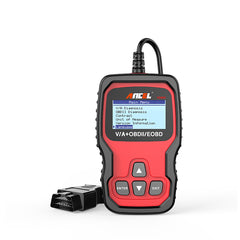
$59.99
Download the Firmware Update
- Visit the official ANCEL website.
- Download the the firmware update package for the VD500.
Extract the Firmware Files to your Computer Desktop
- Locate the downloaded ZIP file.
- Select the ZIP file and extract its contents using a tool such as WinRAR or 7Zip.
- Save the extracted folder to an accessible location, preferably your desktop.
Update your Computer’s Drivers if Necessary
Begin the Update Installation Process
Now you can connect your ANCEL VD500 scanner to your computer via the included USB port. Your VD500 should give you a prompt if it recognizes that the correct drivers are installed. The screen of the ANCEL VD500 should say “Please perform related operations on your computer” if the connection is valid.
Now click on the Update.exe file. A new window will pop up, and prompt you to install the files on your ANCEL VD500. Click on “update” to begin.
The process should only take about one or two minutes to complete. Depending on your computer and its security settings, Windows may provide you with a security permissions prompt and ask for your authorization. Feel free to pick yes to allow the installation to continue.
Make sure not to disconnect your ANCEL VD500 during this process. The screen of your car scanner should read “Keep USB connected! Processing...” if the process is being done properly.
Related Reading: How To Update Ancel AD310
Once the process is done, you can close the window, delete the files from your desktop and unplug your ANCEL VD500. You’re now done! Your ANCEL OBD scanner has been updated with the latest software.
What Should I do if My ANCEL VD500 won’t Connect to My Computer?
There are some issues that cause the VD500 to not recognize that it’s plugged into a computer. If this should happen to you, try out the simple troubleshooting tips before moving onto the longer ones.
Try using different USB ports or USB cables and see if that solves the issue. Some devices will only work with certain ports such USB 2.0 and USB 3.0 have been known to have some minor compatibility issues.

Another solution you can try is running the driver or the update executable as administrator. Right-click on the files and select “Run as Administrator” from the dropdown menu.
If none of these have worked, your next best bet will be to manually install the installation drivers yourself. This is an issue more likely to occur with people using older operating systems, such as Windows 7 or Windows 8.
First, head over to My Computer and then select Manage. From here, you will want to go to Device Manager.
You should now see a list of devices in the center of the screen. You need to look for an unknown device that your computer can’t recognize as the ANCEL VD500. If the ANCEL VD500 is already plugged into your computer, unplug it. Now immediately plug it back in and look for the unknown device that pops up on the list seconds after you’ve plugged it in. It should be named something like “Unknown USB Device.”
You will need to right-click on the Unknown USB Device so you can manually add the drivers to make it a known device. After right-clicking, select Update Driver Software from the menu.
Next, you’ll see a window with the option “Browse my computer for drivers”. Scroll to your desktop where you have downloaded and extracted the Update folder. Go into the Drivers subfolder and select that. You can now click add, and your computer should now manually add these drivers, allowing your ANCEL VD500 to finally become a recognized USB device.
Once your VD500 is recognized, you may now go back to the previous installation instructions above and continue with adding the new firmware software.
Lifetime Updates for Any ANCEL Device
Like other Ancel code engine readers and OBD2 scanners, the ANCEL VD500 is subject to lifetime free firmware updates, allowing you to keep your VD500 for years and years. Be sure to check back in with the official ancel obd scanner website at least once a year to see if there are any new free updates. This will help make sure your ANCEL VD500 will always be in its best possible shape.
Conclusion
It’s important to keep your ANCEL VD500 up to date. And it’s not hard to do so if you simply follow the steps above when new updates are available. It’s not something you need to do every month, but it’s a good idea to check for updates periodically in case newer and better versions are available.
FAQs
How can I update the firmware of my ANCEL VD500 diagnostic scanner?
Download the firmware update from the official ANCEL source, extract the files to your computer, update your computer's drivers if needed, connect the scanner to your computer, run the update file, and wait for the process to complete.
What should I do if my ANCEL VD500 scanner doesn't connect to my computer?
Try using different USB ports or cables, run the driver or update executable as an administrator, or manually install the installation drivers by accessing Device Manager, locating the unknown USB device, and adding the drivers manually.
Are there lifetime updates available for the ANCEL VD500 scanner?
Yes, like other ANCEL devices, the VD500 is eligible for lifetime free firmware updates. It's recommended to check the official ANCEL website periodically for any new updates.


27 Gedanken zu „ How to Update the ancel VD500 “
Wolfgang Toffel
Hallo,
da ich den File für das Update nicht finde, senden sie mir bitte die Datei zu.
mfg
Darren Snape
Unable to find the link to update my VD500
Tom Wu
Updates gibts keine mehr. Die Lifetime Updates wurden beendet und kosten jetzt extra .. @Ancel falls das nicht stimmen sollte, dann bitte das Update und den Link wieder einstellen.
Karwan Baker
Where’s the link?
Heinz-Günter Wöllmann
der ganze dreck nur in englisch